
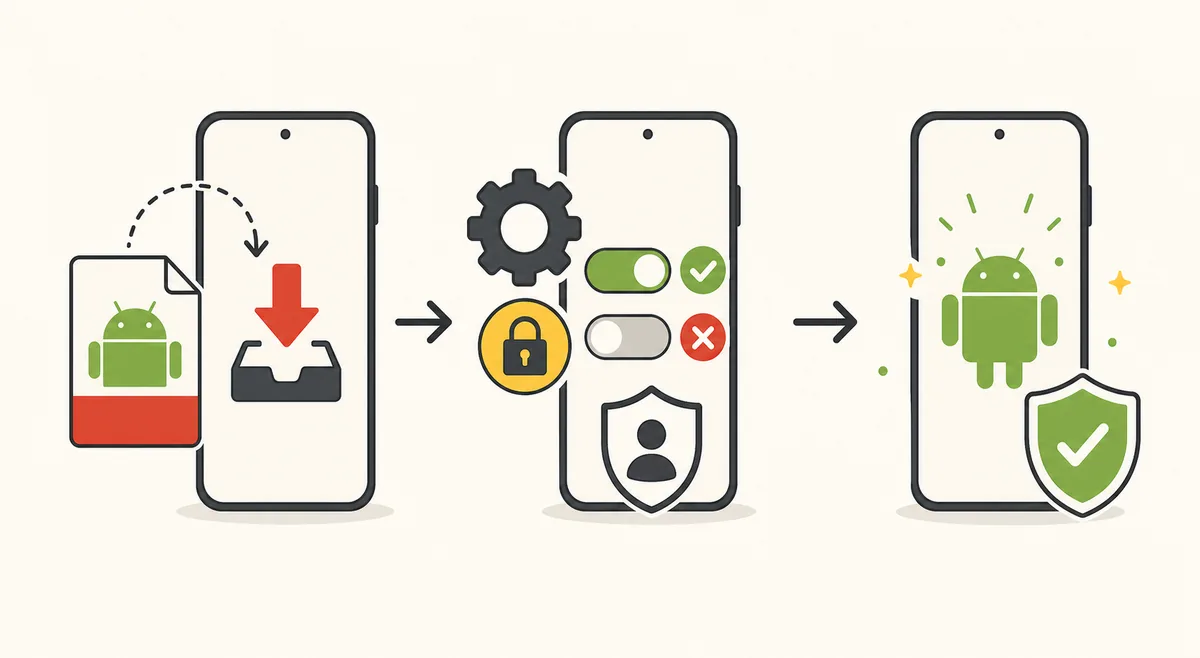
Before you install Tomato APK
Before you install Tomato APK, identify the file and its source without turning off Android security. Save the source URL, download time, advertised version, exact file size, SHA-256, package name, version code, minimum Android requirement, and signing certificate fingerprint. A mirror that publishes none of this evidence is asking you to trust a filename.
Confirm that the package is a normal single APK rather than an XAPK, APKM, APKS, or split bundle. Those formats require different installation workflows and may include multiple architecture or language files. Renaming a bundle to .apk does not convert it into a compatible package.
Back up important device data, update Android and Play Protect, and make sure you have enough free storage for both the installer and the unpacked app. Use a secondary profile or test device when the publisher is not established.
- Install Tomato APK only after preserving the original filename and source URL.
- Before you install Tomato APK, compare its SHA-256 and certificate with a trusted release.
- To install Tomato APK with less risk, review scanner results without treating them as a guarantee.
- Never install Tomato APK mod, cracked, ad-removal, or repackaged variants from unknown sources.
- Do not use a primary account or sensitive credentials during initial testing.
Steps to install Tomato APK
Android labels differ by manufacturer, but modern versions normally grant sideloading permission to a specific source app rather than enabling one global switch. Use the narrowest permission available.
- 1
Download from the verified source
Use the exact release URL before you install Tomato APK. Avoid advertising buttons, redirect chains, notification prompts, and a second filename that appears after the first download.
- 2
Calculate and compare the SHA-256
Use a trusted local file tool or security product. A hash mismatch means the file is not the package described by the publisher, even if the filename matches.
- 3
Review package details and permissions
Confirm package name, version code, certificate, minimum Android version, and requested access. Stop if the app identity or permissions differ from the release record.
- 4
Allow installs from one source
When Android prompts you, grant install permission only to the browser or file manager opening the APK. Do not enable unrelated apps.
- 5
Complete the Android package prompt
Read the app name and update warning. A signature conflict can indicate a different publisher or modified build; do not uninstall a trusted copy merely to bypass that warning.
- 6
Revoke sideloading permission
Return to Special app access or the equivalent settings page and disable installation permission for the browser or file manager.
- 7
Run a cautious first launch
Deny optional permissions initially, monitor network and battery behavior, confirm basic functions, and remove the app if it requests unexplained high-risk access.
Android permission review
When you install Tomato APK, a streaming or reading app may reasonably use network access, notifications, media controls, and limited storage access. Android permission labels change by version, so their relationship to a visible feature matters most.
Contacts, call logs, SMS, accessibility services, device administrator, broad background location, install-packages capability, or unrestricted file access require a strong explanation. Do not approve them simply because the app will not continue. Check whether a feature can work with a narrower permission or without an account.
| Permission area | Possible purpose | Review question |
|---|---|---|
| Network | Streaming, catalog, updates | Which domains are contacted and is traffic encrypted? |
| Notifications | Episode or chapter alerts | Can it be denied without blocking core use? |
| Photos and media | Offline files or selected exports | Does the app need all files or only chosen media? |
| Microphone or camera | No obvious core need for ordinary playback | What exact feature requires it? |
| Accessibility | Powerful control over other apps | Is this unrelated to normal anime or manga use? |
| Contacts, SMS, calls | No clear basic-media purpose | Stop unless a verified developer gives a precise reason |
Fix common Tomato APK installation errors
If you cannot install Tomato APK, the message App not installed is not a diagnosis. Check the file, Android version, storage, CPU architecture, package format, and signature in a controlled order. Repeatedly downloading different mirrors increases risk.
| Symptom | Likely cause | Safer next step |
|---|---|---|
| Package appears invalid | Incomplete download or wrong bundle format | Compare size and hash; identify APK versus split package |
| App not installed | Signature conflict, compatibility, or storage | Check existing package, SDK, architecture, and free space |
| Parse error | Corrupt file or unsupported Android version | Verify hash and manifest requirements |
| Update blocked | New file uses a different signing certificate | Do not remove trusted data until the publisher explains the change |
| App closes immediately | Missing service, incompatible build, or runtime error | Record device, Android, version code, and exact behavior |
| Security warning | Play Protect or scanner found risk | Stop and investigate; do not disable protection to continue |
Update or remove Tomato APK
To install Tomato APK updates, require the same package name and signing certificate as the installed release. Android checks that relationship. If signatures differ, treat the new file as a different publisher or modified package until proven otherwise.
Before removing the app, check whether favorites, watch progress, downloads, or reading history are stored locally. Use an in-app export only if its destination and contents are clear. After uninstalling, review shared storage and download folders for remaining media or installers, then remove sideloading permission from any source app that still has it.
Keep the hash and source record for the version you tested. That history makes future updates easier to compare and helps distinguish a real release change from a repackaged mirror.
Official Android references
These primary references support the Android security and installation concepts used in this guide.
- Google Play Protect helpGoogle's guidance for checking apps and keeping Play Protect enabled.
- Android app signingAndroid Developers documentation on signing keys and update identity.
- Android permissions overviewAndroid Developers guidance on permission types and safer access patterns.
Tomato APK installation questions
How do I install Tomato APK?
To install Tomato APK, grant Install unknown apps permission only to the browser or file manager opening the verified file, complete the prompt, then revoke that permission.
Why does Android say App not installed?
Possible causes include a corrupt file, wrong package format, insufficient storage, Android or CPU incompatibility, or a signing-certificate conflict.
Should I disable Play Protect?
No. Investigate the warning and file evidence. Disabling device protection to force an unknown package to install removes an important safety signal.
Can I update Tomato APK without losing data?
A correctly signed update with the same package name normally installs over the existing app. Back up supported data first and stop if the signature differs.
What permissions should Tomato APK need?
Network, notifications, and limited media access may relate to features. Contacts, SMS, calls, accessibility, device admin, or broad file access need a specific verified reason.
Where can I get the verified APK used in this guide?
The site does not currently supply one because a current first-party source and redistribution basis have not been established.