
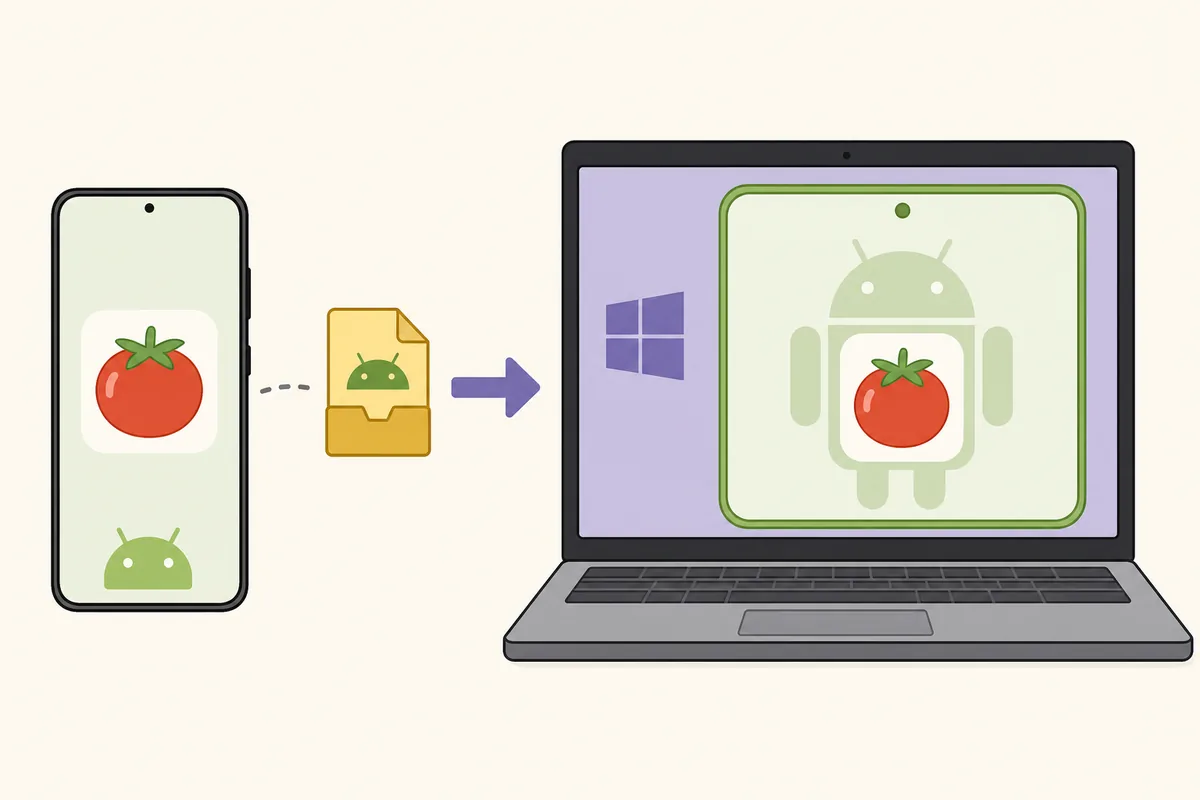
Can Tomato APK run on Windows?
Windows cannot install an APK as a native desktop program. APK files are built for the Android runtime and contain an Android manifest, application resources, and code compiled for Android devices. An emulator creates a virtual Android environment inside Windows so that compatible packages can run there.
This extra layer means you are trusting two downloads: the emulator installer and the Tomato APK. Verify each one from its own source. Download the emulator only from its developer-controlled website, check its Windows signature, and decline bundled software. Then verify the APK source, hash, package name, signing certificate, and permissions before importing it.
Performance depends on the computer, emulator, Android image, graphics driver, virtualization setting, and the app's own media behavior. A page saying Tomato works on PC does not guarantee smooth playback or remote control support on every system.
PC requirements and preparation
A modern 64-bit Windows system with hardware virtualization enabled usually provides the most reliable emulator experience. Exact requirements vary, so compare the emulator's official documentation with your PC rather than relying on a Tomato download page.
| Component | Practical baseline | Why it matters |
|---|---|---|
| Operating system | Supported 64-bit Windows release | Current security updates and emulator compatibility |
| CPU | Hardware virtualization support | Improves Android virtual-machine performance |
| Memory | Enough RAM for Windows plus the emulator | Reduces freezing and forced app closure |
| Storage | Space for emulator, Android image, APK, and media cache | Offline episodes or chapters can grow quickly |
| Graphics | Current driver and supported rendering mode | Affects video decoding and interface rendering |
| Network | Stable connection with controllable DNS and firewall | Streaming and remote content depend on network behavior |
How to install Tomato APK on a PC
Do not use a prepackaged Tomato PC installer from a random mirror. A transparent setup keeps the emulator and APK separate so you can inspect and update each component independently.
- 1
Choose an emulator from its official website
Compare supported Windows versions, privacy settings, advertising, Android image version, accessibility, and uninstall behavior. Avoid download wrappers.
- 2
Enable virtualization and update drivers
Follow your PC maker and emulator documentation. Do not disable Windows security features unless the emulator developer explains a specific supported configuration.
- 3
Create a clean Android instance
Use a separate emulator profile for an unverified app. Do not sign in with your primary Google account or sync sensitive contacts and files.
- 4
Verify and import the APK
Record the file hash and signature first, then use the emulator's standard APK install action. Reject unexplained permission requests.
- 5
Test playback and storage cautiously
Check CPU, memory, network, cache growth, fullscreen behavior, keyboard controls, and whether the app runs after an emulator restart.
Emulator privacy and security
An emulator can access files, clipboard content, camera, microphone, and network connections depending on its settings. Use a dedicated shared folder rather than exposing your entire Documents or Downloads directory. Disable camera, microphone, location, and clipboard sync unless a tested feature requires them.
Keep Windows Defender or another trusted security product active. Use the emulator's network and Android settings to review installed certificates, VPNs, accessibility services, and device administrator privileges. If a media app requests control that is unrelated to viewing or reading, uninstall it and remove the emulator instance.
A separate Windows user or disposable emulator instance reduces exposure, but it does not make an unknown APK safe. The best control remains a traceable source and matching signing certificate.
Tomato APK for PC setup checklist
A dependable Tomato APK for PC setup keeps the Windows emulator and Android package as two separately verified components. Choose Tomato APK for PC only after downloading the emulator from its developer-controlled site, confirming its Windows signature, and creating a clean Android instance. Then compare the APK hash, metadata, and signing certificate before import.
Use Tomato APK for PC with a dedicated emulator profile that has no primary email, personal contacts, unrestricted shared folders, microphone, camera, or clipboard access. A Tomato APK for PC test should record virtualization, memory, storage, graphics drivers, and Android image compatibility. This makes Tomato APK for PC troubleshooting reproducible instead of a series of random setting changes.
Treat Tomato APK for PC as an Android app inside a virtual device, not native Windows software. Keep Tomato APK for PC testing isolated, monitor cache and network behavior, and preserve the APK hash. If a site offers Tomato.exe, a bundled installer, or an APK converter, verify that separate program instead of assuming it belongs to the Tomato APK for PC workflow.
Troubleshooting Tomato APK on PC
If installation fails, first confirm that the APK itself is complete and compatible with the Android version and CPU architecture used by the emulator. A corrupted file, split APK bundle, signature conflict, insufficient storage, or unsupported minimum SDK can all produce similar errors.
For playback problems, switch only among rendering modes documented by the emulator, update the graphics driver, test hardware decoding, and compare network behavior in the emulator browser. If the app opens on a phone but not in the emulator, it may depend on device integrity, DRM, codecs, Google services, orientation, or hardware capabilities that the virtual device does not provide.
For repeated crashes, create a clean emulator instance instead of piling changes onto the first one. Record the emulator version, Android version, app version code, CPU architecture, and exact error message before seeking help.
Tomato APK for PC questions
Can I install Tomato APK directly on Windows 10 or 11?
No. An APK is an Android package. Windows normally requires a reputable Android emulator or another officially supported Android runtime.
Is there an official Tomato PC download?
We did not verify a native developer-controlled Tomato Windows release. Treat any Tomato.exe or PC installer as separate software that needs its own source and signature checks.
Which emulator should I use?
Choose a maintained emulator from its official website based on Windows support, privacy, Android version, resource use, and accessibility. We do not endorse a specific brand without testing it against a verified APK.
Why will Tomato APK not install in my emulator?
Common causes include a corrupted file, split package, Android version mismatch, CPU architecture mismatch, signature conflict, or insufficient storage.
Can I use Tomato APK on a Mac?
The same principle applies: an APK needs a compatible Android runtime. Verify the emulator's macOS support and the APK independently.
Is an emulator safer than installing on my phone?
A separate emulator profile can reduce access to personal phone data, but it does not prove an unknown APK is safe. Source and signature verification still matter.