Check the Fire TV platform before you download
Open Settings and identify the exact device and software on its About screen. Product names alone do not establish compatibility: Fire TV models can differ by generation, software, region, storage, and installation controls. Confirm that your device runs Fire OS and exposes a supported Android-app installation route. If it does not, an APK is the wrong format.
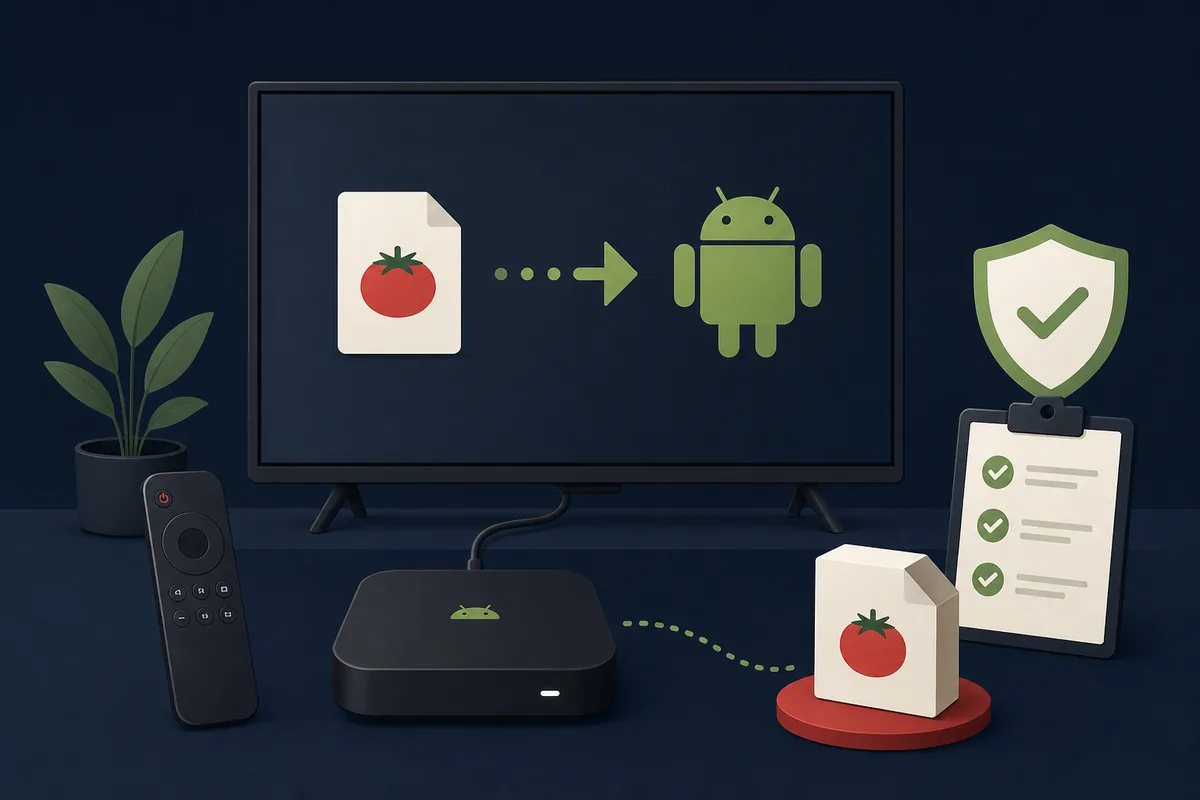
A Tomato APK is an Android package, not an Amazon Appstore listing. On compatible Fire OS devices, ask three separate questions: can the package install, can the app work with a television remote, and can you identify the publisher? A successful install answers only the first question. It does not prove file integrity, content rights, or a future update path.
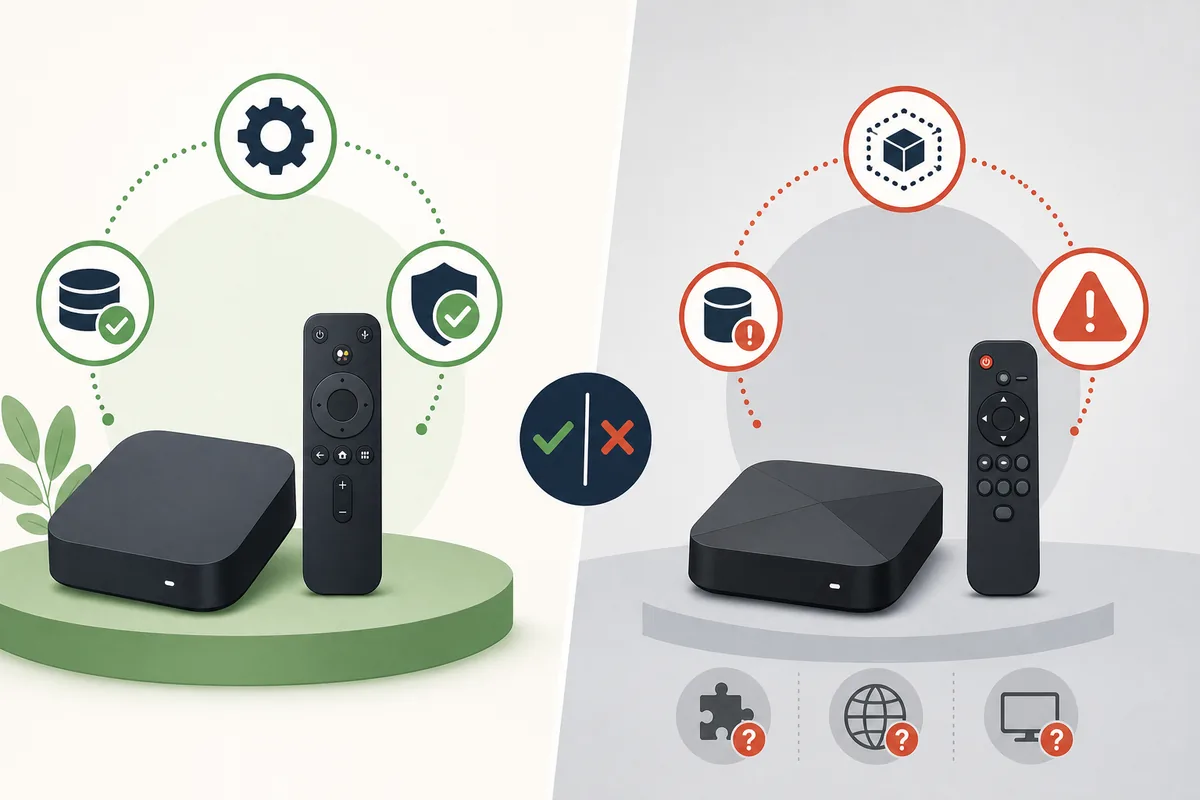
- The About screen identifies the model and operating system.
- The installer permission is limited to the app that needs it.
- The file is a standard APK, not an unsupported bundle or archive.
- The publisher and package identifier can be checked independently.
Tomato APK for Firestick: what the file name cannot prove
Searches may mix the Tomato Anime website, third-party APK records with a Tomato name, unrelated apps, and generic sideloading instructions. Keep these identities separate until a publisher connects a package name and signing certificate to a release record.
The first-party website response checked November 5, 2026 did not expose a Tomato APK version, package metadata, or a stable direct file URL. This page can explain Fire OS compatibility, but cannot identify an official, safe, or latest Tomato file.
| What you see | What it proves | Next step |
|---|---|---|
| Fire OS has an install permission | The device may accept a compatible Android package. | Verify the exact file and publisher first. |
| A Tomato filename | Only the name given to that file. | Check package, signer, source, and release record. |
| Installation completes | The package manager accepted the file. | Test remote controls; do not infer trust. |
| No publisher-controlled record | Publisher and update continuity are unknown. | Do not sideload that file. |
Prepare an APK file you can identify
Record the exact source URL before using Downloader or a computer. Prefer a developer-controlled release page or recognized store record that names the publisher. A shortened link, chat attachment, countdown page, or mirror citing another mirror does not establish provenance. Stop if you cannot trace who signed the package and how updates are published.
Check the format as well as the filename. An XAPK, APKM, ZIP, or split-package set may need a compatible installer; Fire TV's standard package flow may reject it. Do not rename an archive or use an unknown converter. Keep the original file unchanged and record its byte size and SHA-256 when you have a trusted tool.
A matching hash shows that two files are identical, not that the publisher is legitimate. Android checks package signatures, and changes to signed APK contents invalidate modern verification. A certificate can help compare releases, but signer identity still needs a trusted publisher record. Use the broader safety and version guides for those shared checks.
- Keep the source URL, date, file type, and package identifier together.
- Compare a signer only with a trusted release from the same publisher.
- Treat a hash as a file identifier, not a safety rating.
- Reject unexpected archives or requests to disable protections.
Install Tomato APK with Fire TV's Downloader route
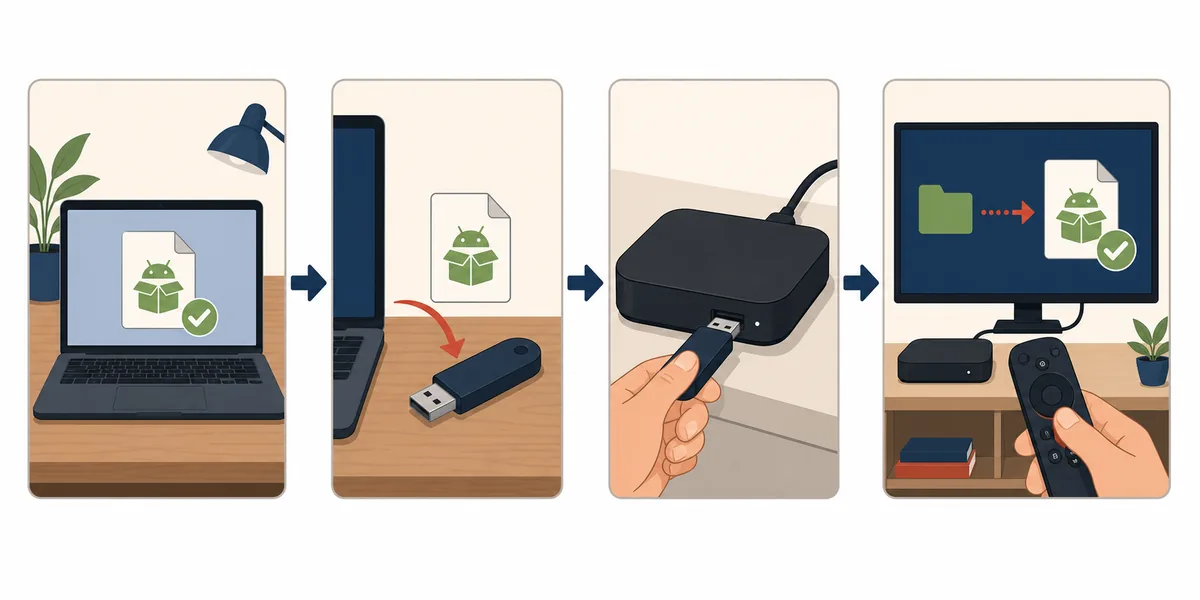
Use these steps only after the source, package identity, and format are established. Menu names vary by Fire OS version. If a control is missing or the device warns that a package is blocked, consult current Amazon guidance instead of looking for a bypass. Downloader transfers a file; it does not verify its publisher.
- 1
Confirm the model and Fire OS
Open Settings, the device or My Fire TV section, and About. Record the model and software. Stop if the device lacks a supported Android installation path.
- 2
Choose a trusted installer
Find Downloader through the Amazon Appstore, not a search ad or third-party package. Check the publisher shown in the store.
- 3
Allow one installer if needed
Use Fire OS's per-app install permission when available. Do not enable unknown installs globally; turn the permission off after the test.
- 4
Retrieve the verified standard APK
Use the exact release URL you checked. Cancel on an unrelated redirect, unexpected file type, or publisher mismatch.
- 5
Review, test, and revoke
Read the package name and permissions, then test launch, focus, and Back once. Revoke installer access; uninstall if evidence or behavior differs.
Use ADB only when a trusted source requires it
Android Debug Bridge is a developer tool for installing, testing, and debugging apps on Fire TV. Amazon's documentation says to enable debugging on the television and set up ADB on the computer; USB debugging can also make a Fire TV USB port unavailable for storage or accessories.
ADB changes the connection method, not the trust decision. Use it only when a publisher-controlled instruction requires it. Keep both devices on a trusted network, reject unexpected pairing prompts, and never share pairing codes or device addresses. Disable debugging when the authorized test ends.
- 1
Read Amazon's current instructions
Follow the Fire TV documentation for your model and software; older menu paths may differ.
- 2
Use official platform tools
Obtain Android SDK Platform-Tools through Android's developer distribution.
- 3
Disconnect and disable debugging
Close the ADB connection and turn debugging off after the test.
Troubleshoot Firestick APK installation and launch errors
Capture the exact warning and file type before changing settings. Package parsing, CPU architecture, Android version, split-package format, storage, and signing conflicts have different causes. Do not keep installing renamed copies or add a third-party fixer APK to diagnose an unknown file.
| Symptom | Possible cause | Evidence-led response |
|---|---|---|
| Parse error | Incomplete download or unsupported bundle. | Verify the transfer and publisher's format; do not rename it. |
| Install blocked | Permission missing or device restriction. | Check Amazon's current instructions; stop at a deliberate block. |
| Installs but will not launch | OS, architecture, service, or app incompatibility. | Ask the publisher about that exact model and package. |
| Remote cannot navigate | App expects touch or phone layout. | Exit; do not add an unverified control tool. |
| Signature conflict | Different package identity or signing key. | Stop and compare with a trusted publisher release. |
| Storage warning | Insufficient free device space. | Use Fire TV's normal storage controls; do not delete system files. |
After installation: remote control, privacy, and stop conditions
Test directional focus, Select, Back, text entry, captions, and normal navigation. A phone app may install but remain unusable on a television. Stop if it requires unexplained accessibility, overlay, or device-administrator access just to operate.
Compare requested permissions with the stated purpose. Do not disable Play Protect or security updates to make a package run. Keep the model, software, package, URL, hash, signer, permissions, and test date in one note so a same-named replacement is not mistaken for the file you checked.
If no verified Tomato APK is available, not installing one is a valid outcome. Check the site's download-status page or use a store or browser route that matches the device. Missing release evidence is not a reason to lower device protections.
- Revoke unknown-app permission and ADB debugging after testing.
- A successful scan, install, or certificate check is not a complete safety verdict.
- Keep an evidence note and remove files you no longer need.
- Use the general Android installation guide for checks shared with phones.
Fire TV and Android references
These first-party technical references explain Fire TV debugging and Android package signing; they do not verify a Tomato APK.
- Amazon: Connect to Fire TV Through ADBInstructions for enabling debugging and connecting a development computer to Fire TV.
- Android: App signingAndroid package signing schemes and verification of signed APK contents.
Tomato APK for Firestick questions
Can I install Tomato APK on a Firestick?
Only if the exact model and software support a compatible Android package. We have not verified a publisher-controlled Tomato APK or direct URL, so this guide does not recommend an unidentified download.
Is there an official Tomato APK for Firestick?
We did not find a developer-controlled Firestick package record on November 5, 2026. A matching mirror name or successful install is not proof of an official app.
Can Downloader install Tomato APK?
It can transfer a file but cannot verify publisher, signer, permissions, or compatibility. Check those details before using an installer.
Why does an APK install but not work with my remote?
It may expect touch, phone orientation, or controls unavailable on a television. Stop if operation requires unrelated access or an untrusted input tool.
Can Fire TV install XAPK or APKM files?
Not necessarily. These may be bundles or archives the standard installer does not accept. Follow a verified publisher's format instructions; do not rename a file.
Does ADB make a Tomato APK safe?
No. ADB is a developer connection tool and does not verify a package. Turn debugging off after an authorized test.
What if Fire TV blocks the installation?
Save the warning and check current Amazon guidance. Do not disable protections or look for a bypass; stop if the publisher cannot explain the block.